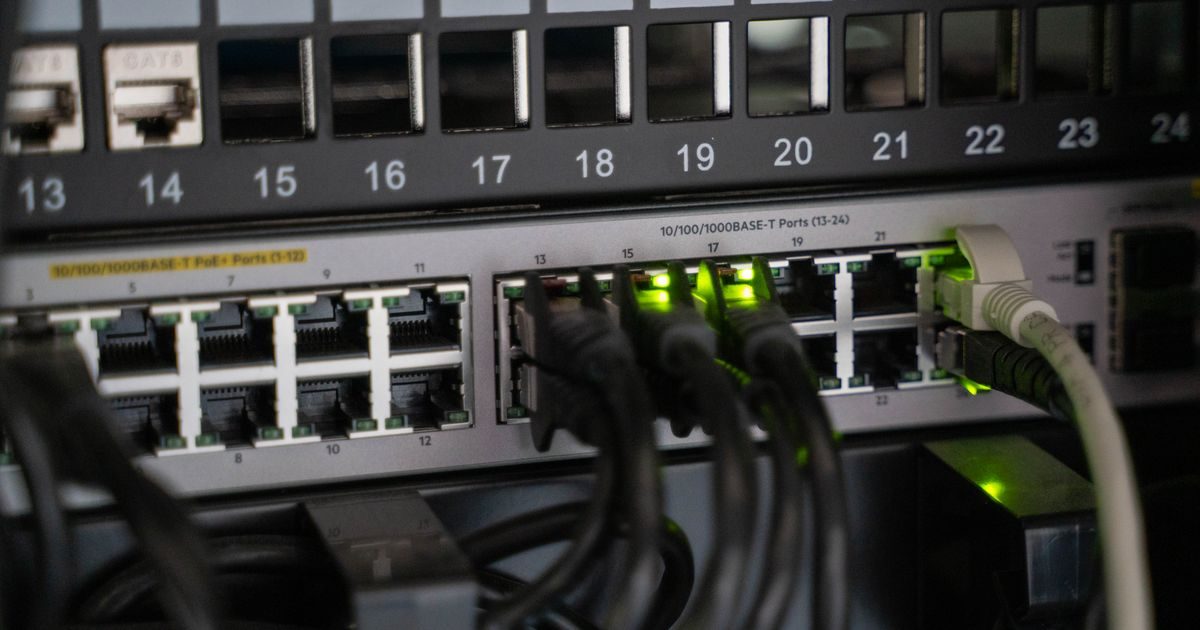
When a web server goes down, the first rule is to stay calm and follow a structured protocol. Acting randomly — restarting services without knowing why they failed — can make things worse or destroy the evidence you need to diagnose the problem.
This guide walks you through the exact steps: from confirming the outage is real to restoring service and preventing a repeat incident.
Step 1: Confirm the Problem Is Real
Before you panic, rule out a local issue. Your own internet connection, an intermediate ISP, or a DNS misconfiguration can make you unable to reach the site even when the server is perfectly healthy.
- Use downforeveryoneorjustme.com or isitdownrightnow.com to check from outside your network.
- Run
curl -I https://yourdomain.comfrom a different server or VPS. - Ask a colleague on a different network to try accessing the site.
If the site is down for everyone, the problem is on your server. Move to step 2.
Step 2: Check Server Status via SSH
Connect to your VPS or dedicated server over SSH. If you cannot connect at all, the problem is severe (kernel panic, OOM killer, hardware failure) and you need to use your provider's emergency console.
Once you are in, run these baseline diagnostics:
# System load for the last 1, 5, and 15 minutes
uptime

# RAM and swap usage
free -h

# Disk space
df -h

# Top CPU/RAM consumers
top -bn1 | head -20

# Recent kernel messages
dmesg | tail -30
A load average much higher than (number of CPUs × 2), exhausted RAM, or a disk at 100% are the most common culprits. Note them down before taking action.
Step 3: Identify Which Service Failed
A web server usually goes down because one of its core services stopped. The usual suspects are Apache/Nginx, PHP-FPM, MySQL/MariaDB, or the OS itself.
Check service status
# On systemd-based systems (CentOS 7+, Ubuntu 16+)
systemctl status apache2    # or httpd on CentOS/RHEL
systemctl status nginx
systemctl status php8.2-fpm  # adjust version as needed
systemctl status mariadb

# Recent errors for a specific service
journalctl -u apache2 --since "10 minutes ago"
Read the error logs
Logs are your best diagnostic tool. Common locations:
- Apache:
/var/log/apache2/error.logor/var/log/httpd/error_log - Nginx:
/var/log/nginx/error.log - MySQL/MariaDB:
/var/log/mysql/error.logor/var/log/mariadb/mariadb.log - PHP-FPM:
/var/log/php-fpm/error.log
tail -100 /var/log/apache2/error.log
Look for messages like "out of memory", "can't create thread", "no space left on device", or "connection refused". Each points to a different root cause.
Step 4: Recovery Actions by Root Cause
Once you know the cause, act precisely rather than broadly:
| Detected cause | Immediate action |
|---|---|
| Web service stopped (no clear errors) | systemctl restart apache2 / nginx |
| RAM exhausted / OOM killer fired | Identify and kill the memory hog, then restart the service |
| Disk full (100%) | Free up space (old logs, temp backups, cache), then restart services |
| Database down | systemctl restart mariadb; verify integrity with mysqlcheck |
| Zombie process / infinite loop | Find the PID with ps aux and kill it with kill -9 <pid> |
| Cannot SSH in | Use your provider's VNC/KVM emergency console for out-of-band access |
Free up disk space quickly
# Find the heaviest directories
du -sh /* 2>/dev/null | sort -rh | head -20

# Remove old compressed Apache logs
find /var/log/apache2 -name "*.gz" -mtime +7 -delete

# Clear package cache (Debian/Ubuntu)
apt-get clean
Step 5: Prevention So It Doesn't Happen Again
Resolving the crisis is just the first step. What separates a reactive admin from a proactive one is what happens after the incident.
- Set up monitoring alerts for CPU, RAM, disk, and HTTP availability (see our VPS server monitoring guide for recommended tools).
- Enable logrotate so logs never fill your disk again.
- Tune memory limits for PHP-FPM and MySQL to prevent runaway consumption.
- Schedule daily automated backups and verify them at least once a month.
- Document the root cause and resolution in an internal runbook — even a plain text file works.
As your infrastructure grows, consider a managed VPS where the provider's technical team applies these configurations on your behalf. Agencies like elenlace.com offer proactive maintenance and monitoring so you can focus on your business, not on being on-call.
Key takeaways
- Always confirm the outage is real before acting — it may be a local network or DNS issue.
- SSH in and check load, RAM, and disk as your first triage step.
- Error logs (Apache, Nginx, MySQL, PHP-FPM) are the source of truth for root cause.
- Act precisely: blind restarts can mask the real problem and cause data loss.
- After recovery, implement monitoring and logrotate to prevent a repeat.
Does your team lack the bandwidth to manage server incidents? elenlace.com provides VPS administration and technical support to keep your sites online around the clock — without you needing to be the expert on duty.
FAQ
What should I do if I can't connect via SSH?
Use the emergency console offered by your hosting provider — typically called a VNC, KVM, or IPMI console. It gives you direct access to the server as if you were physically in front of it, allowing you to run all the same diagnostic commands.
How long does it usually take to recover a downed server?
If the cause is a stopped service with no data damage, recovery typically takes 2 to 10 minutes. If the disk is full or there is database corruption, it can take anywhere from 30 minutes to several hours depending on data volume.
Will a server reboot fix most outages?
A reboot may restore service temporarily, but it does not fix the root cause. If you reboot without diagnosing, the server will go down again. Always identify the why — before or immediately after — any restart.
How do I tell if it was a DDoS attack vs. an internal issue?
A DDoS attack typically shows up as extremely high network traffic (netstat -an | grep ESTABLISHED | wc -l will show thousands of connections) with the server responding slowly but services still running. An internal issue (full disk, OOM, crashed process) will present the symptoms described in this guide. Your hosting provider can confirm the network-level diagnosis.
Compare providers
Other providers and guides worth comparing: