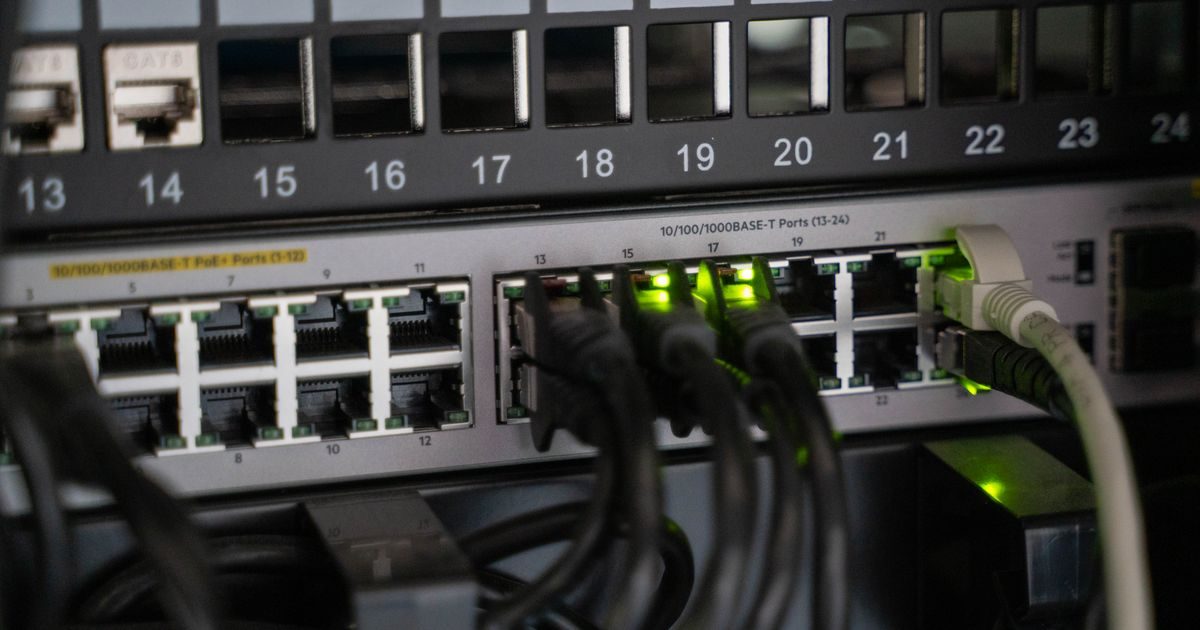
If you suspect your web server has malware, you're probably right: the typical indicators are unexpected redirects, pages with strange content, Google blacklisting, or an unusually slow server. The detection and removal process follows clear steps — this article walks you through them in order.
Signs Your Web Server Has Malware
Before any technical diagnosis, most infections surface through one or more of these warning signs:
- Google Search Console shows "deceptive site" or "malicious content" warnings.
- Visitors are redirected to spam, pharmacy, or phishing sites.
- Your hosting provider suspends the account for bulk spam sending or malicious activity.
- Unknown PHP files appear in upload directories or at the site root.
- The server consumes CPU or RAM abnormally without traffic to explain it.
- Domain email accounts appear on spam blacklists (Spamhaus, MXToolbox).
A single sign may have other explanations, but two or more simultaneously point almost certainly to an active infection.
Step 1: Isolate Before Cleaning
The first instinct is usually to delete the malicious files immediately. That's a mistake: if you don't first understand how the malware got in, it will be back within hours.
Before cleaning:
- Enable maintenance mode or restrict public access to prevent the malware from infecting more users while you work.
- Take a snapshot or backup of the current state. It seems counterintuitive to keep an "infected" copy, but you'll need the files for forensic analysis.
- Change all credentials immediately: FTP/SSH passwords, control panel, database, and CMS admin accounts.
Step 2: Detect the Malware with Scanners and Commands
Recommended Automated Scanners
These tools analyze server source code for known malicious patterns:
- Maldet (Linux Malware Detect): specialized in shared hosting and VPS malware. Detects webshells, backdoors, and spam files.
- ClamAV: open-source antivirus with a broad signature database. Useful as a second opinion.
- ImunifyAV (free): if your provider uses Imunify360, the free version can scan from the control panel.
- Wordfence (WordPress): for WordPress sites, Wordfence includes a file scanner for core, plugins, and themes.
Running Maldet from the command line:
maldet --scan-all /var/www/html
maldet --report
Find Recently Modified Files
Server files altered without your knowledge are a direct sign of compromise:
find /var/www/html -type f -name "*.php" -mtime -7
This command lists PHP files modified in the last 7 days. Review each result: if you don't remember editing that file, read its contents.
Detect Webshells and Obfuscated Code
grep -rl "base64_decode\|eval(base64\|gzinflate\|str_rot13" /var/www/html
The combination of base64_decode and eval is the hallmark of most PHP webshells and backdoors. A positive hit doesn't always mean malware (some legitimate plugins use base64), but every result warrants immediate inspection.
Review Suspicious Outbound Network Connections
ss -tupn | grep ESTABLISHED
If you see outbound connections to unknown IPs or ports, note them and look them up in services like VirusTotal or AbuseIPDB.
Step 3: Safely Remove the Malware
Once you've identified compromised files, follow this cleanup order:
- Delete or restore infected files. For a CMS like WordPress or Joomla, the safest approach is to replace core files with a clean official copy rather than trying to manually scrub malicious code.
- Delete unknown files in upload directories (
uploads/,tmp/) that you don't recognize — especially PHP files. Upload directories should never execute PHP. - Review and clean the database. Malware sometimes injects code into WordPress's options table (
wp_options) or post content. Search for suspicious external URLs withSELECT * FROM wp_options WHERE option_value LIKE '%eval%'. - Remove unrecognized admin users in both the CMS and the operating system.
- Review system cron jobs (
crontab -land/etc/cron.d/) for malicious scheduled tasks that might reinstall the malware.
For a professional cleanup that leaves no active backdoors, you can rely on server security experts at elenlace.com, who provide forensic analysis and post-cleanup hardening.
Step 4: Close the Entry Point and Harden the Server
Cleaning without closing the original vulnerability guarantees reinfection. The most common entry points are:
- Outdated software: WordPress, plugins, themes, PHP, MySQL. Update everything immediately.
- Weak or reused passwords: for FTP, SSH, the control panel, and the CMS.
- Incorrect file permissions: PHP files should be 644 and directories 755. If an upload directory has 777 permissions, any uploaded file can execute as code.
- Nulled plugins or themes: pirated software is the number-one infection vector for WordPress sites.
- Password-based SSH enabled: use key-based authentication and disable password SSH access in
/etc/ssh/sshd_config.
After cleanup, request delisting from any blacklists your domain appeared on: Google Search Console has a review process that takes 24–72 hours, and services like Spamhaus provide delisting request forms.
Find more security and administration guides in our VPS servers section.
Key Takeaways
- Isolate and back up before cleaning: you need to understand how the malware got in to close the door.
- Combine automated scanners (Maldet, ClamAV) with manual searches for recently modified files.
- Patterns like
eval(base64_decode(are the hallmark of PHP webshells and backdoors. - Replace CMS core files with official clean copies rather than attempting manual sanitization.
- Without closing the original vulnerability, reinfection is a matter of hours.
- After cleanup, update software, fix permissions, and request removal from blacklists.
If the scope of the infection exceeds what you can handle alone, the team at elenlace.com offers incident response and compromised server cleanup services.
FAQ
Can I clean the malware without reinstalling the server?
Yes, in most cases. If the malware was limited to web application files and didn't compromise the operating system at the kernel or rootkit level, a thorough file and database cleanup is sufficient. If there are signs of a rootkit — such as modified system binaries — reinstalling is the safer option.
How do I know if my server is still infected after cleanup?
Run a second scanner (for example, ClamAV if you used Maldet first) and compare the MD5 hash of critical files against a clean official installation. Tools like Wordfence File Integrity Monitoring do this comparison automatically for WordPress.
Can server malware affect site visitors?
Yes. The most common types redirect visitors to malicious sites, install malware in their browsers via drive-by downloads, or steal credentials through phishing pages. A compromised server is a direct threat to your users.
How long does it take Google to remove a dangerous site warning?
Once you clean the site and submit a review request in Google Search Console, the process typically takes 24–72 hours under normal circumstances. If the site has been flagged multiple times, Google may be more cautious and take up to a week.
Useful resources
Other providers and guides worth comparing: