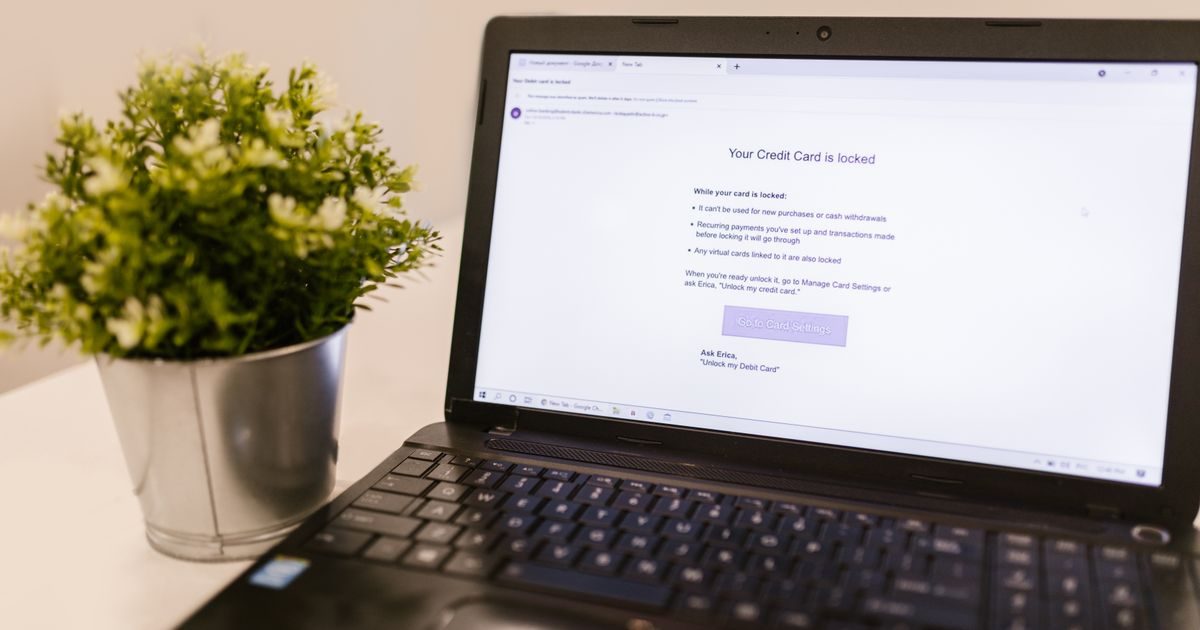
Enabling SSL/TLS on your business email encrypts the connection between your mail client and the server, so no one on the network can read or tamper with what you send.
This guide explains what SSL and TLS mean in an email context, how they differ, and how to enable encryption at the most important points: your mail client, your hosting server, and your domain authentication records.
What Are SSL and TLS in Email?
SSL (Secure Sockets Layer) and TLS (Transport Layer Security) are encryption protocols that create a secure tunnel between two points on a network. In email they work at two levels:
- Transport encryption: protects the connection between your mail client (Outlook, Thunderbird, mobile app) and the mail server. This is where SSL/TLS port settings come in.
- End-to-end encryption: protects message content from sender to recipient, regardless of the servers in between. This requires S/MIME or PGP and is beyond the scope of this guide.
TLS is the modern, secure successor to SSL. When people say "enable SSL on email" today, they're really enabling TLS. The two terms are used interchangeably across the industry.
Standard Ports: SSL/TLS vs. STARTTLS
Before configuring anything, it's worth understanding the two encryption modes servers offer:
| Protocol | Port | Encryption mode | Recommended |
|---|---|---|---|
| IMAP | 993 | SSL/TLS from the start | Yes |
| IMAP | 143 | STARTTLS (upgrades the connection) | Acceptable |
| POP3 | 995 | SSL/TLS from the start | Yes (if using POP3) |
| SMTP (outgoing) | 465 | SSL/TLS from the start | Yes |
| SMTP (outgoing) | 587 | STARTTLS | Yes (common alternative) |
| SMTP (outgoing) | 25 | No encryption or STARTTLS | No (server-to-server only) |
Native SSL/TLS encrypts from the very first packet. STARTTLS starts unencrypted and then upgrades; it's secure when properly configured, but native SSL/TLS is preferred because there is no brief unencrypted window at the start.
Step by Step: Enabling SSL/TLS in Your Mail Client
Outlook (Windows and Mac)
- Go to File → Account Settings → Account Settings.
- Select your account and click Change.
- Under Incoming mail server, set the port to 993 and encryption to SSL/TLS.
- Click More Settings → Outgoing Server and set the port to 465 or 587 with SSL/TLS or STARTTLS.
- Save and test the account.
Thunderbird
- Open Tools → Account Settings.
- Select Server Settings for your account.
- Under Connection security, choose SSL/TLS. The port will automatically update to 993.
- Go to Outgoing Server (SMTP), edit your server, and choose SSL/TLS (port 465) or STARTTLS (port 587).
Apple Mail (macOS / iOS)
- On macOS: Mail → Preferences → Accounts → Server Settings.
- Enable Use SSL for both the incoming and outgoing servers.
- On iOS: Settings → Mail → Accounts → [your account] → Account → Advanced and toggle Use SSL on.
Android (Gmail App with an IMAP Account)
- Open Gmail → Settings → [your account] → Incoming server settings.
- Under Security type, choose SSL/TLS.
- For the outgoing server, under Security type, choose SSL/TLS or STARTTLS.
Verifying the SSL Certificate on Your Hosting Server
The server's SSL certificate must be current for mail clients to trust the connection. An expired or self-signed certificate will trigger security warnings and many clients will refuse to connect.
If your email is hosted on cPanel:
- Go to cPanel → SSL/TLS → Manage SSL Sites and verify that the mail domain has a valid certificate.
- You can also use cPanel's AutoSSL to renew Let's Encrypt certificates automatically.
If your provider doesn't include a valid certificate for the mail server, choose a hosting plan that includes SSL out of the box to avoid the headache.
Domain Authentication: SPF, DKIM, and DMARC
SSL/TLS encrypts the connection but does not authenticate that the sending domain is legitimate. For that you need DNS authentication records:
- SPF: declares which servers are allowed to send email on behalf of your domain.
- DKIM: digitally signs each message so the recipient can verify it hasn't been altered in transit.
- DMARC: defines what to do with messages that fail SPF or DKIM (none, quarantine, or reject) and generates reports.
Without all three records properly configured, your emails are far more likely to land in spam even if SSL is perfectly active. You can check the status of your records with tools like MXToolbox or Mail Tester.
Visit our business email section for detailed guides on setting up SPF, DKIM, and DMARC from scratch.
Key Takeaways
- SSL/TLS encrypts the connection between your mail client and the server; it is not the same as end-to-end encryption.
- Use port 993 for IMAP with SSL/TLS, and port 465 or 587 for SMTP; avoid port 25 for client-side sending.
- Native SSL/TLS (encrypted from the first packet) is preferable to STARTTLS, though both are secure when correctly configured.
- The server's SSL certificate must be current; use AutoSSL or Let's Encrypt for automatic renewal.
- SPF, DKIM, and DMARC complement encryption by authenticating your domain to receiving servers.
- Without those three DNS records, emails can still end up in spam even with SSL fully active.
Looking for email hosting that includes SSL, automatically renewed certificates, and support for SPF/DKIM setup? Explore elenlace.com's professional email plans and get everything configured in minutes.
FAQ
What's the difference between SSL and TLS?
SSL was the original protocol; TLS is its modern, secure successor. Current servers use TLS (versions 1.2 or 1.3), but the industry still calls it "SSL" out of habit. In practice, when you select "SSL" in your mail client, you're using TLS.
Does enabling SSL/TLS slow down email delivery?
The impact is minimal and imperceptible in everyday use. Encryption adds a few milliseconds when establishing the connection, but once active, send and receive speeds are not noticeably affected.
What should I do if my mail client shows an untrusted certificate warning?
This means the server's SSL certificate has expired, is self-signed, or doesn't match the server hostname. Contact your hosting provider to renew or replace the certificate. Do not permanently accept the exception without investigating the cause.
Does SSL encryption protect emails already stored on the server?
No. SSL/TLS protects messages in transit (while they travel over the network). Stored emails are protected by access controls and, on some services, by separate at-rest encryption. For content protection from sender to recipient, you need S/MIME or PGP.
Compare providers
Other providers and guides worth comparing: